 Anmelden
JSAUX FlipGo dual-screen portable monitor review: Gorgeous displays with touch support and a built-in USB hub
The FlipGo is yet another entry into the portable dual-monitor field from JSAUX (the previous one being the more ambitious FlipGo Horizon Pro), and it definitely makes a good first impression. Not only do you get two 16-inch 2560 x 1600 IPS displays, but the FlipGo also supports touch input (on Windows systems). In addition, it incorporates a built-in USB hub that gives you two additional USB-A ports and one USB-C port for your peripherals.
JSAUX provides all of this functionality in a product that comes in at a bit under $500, which is in line with other portable dual-monitors on the market. However, there’s a hefty toll for the functionality that’s provided in this package for those expecting to actually use it as a travel companion.
Design of the JSAUX FlipGo (PM0204)
When I first received the shipping box for the FlipGo, I was shocked at how large and heavy it was. My shock was made even more apparent when I removed the FlipGo from its protective padding, revealing a massive dual-screen device weighing an incredible 4.18 pounds. That’s more than half a pound heavier than a 14-inch Apple MacBook Pro.
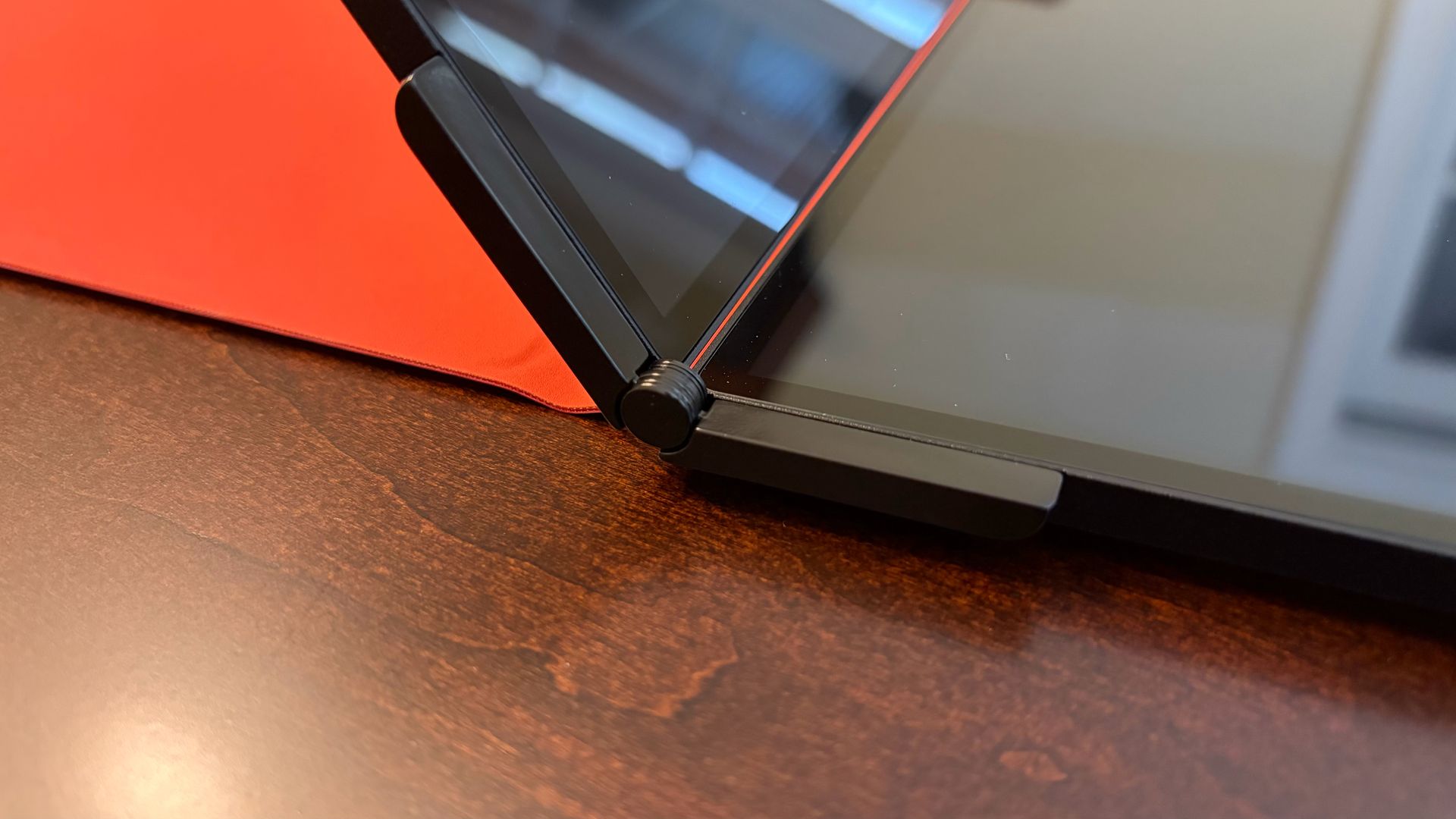
The choice of materials contributes to the 4+ pound weight of the FlipGo. JSAUX uses a thick aluminum chassis that resists flexing and feels incredibly premium to the touch. That premium feel even extends to the hinges that connect the two displays. They are robust, with no play, allowing you to easily open the FlipGo to whatever display angle you desire.
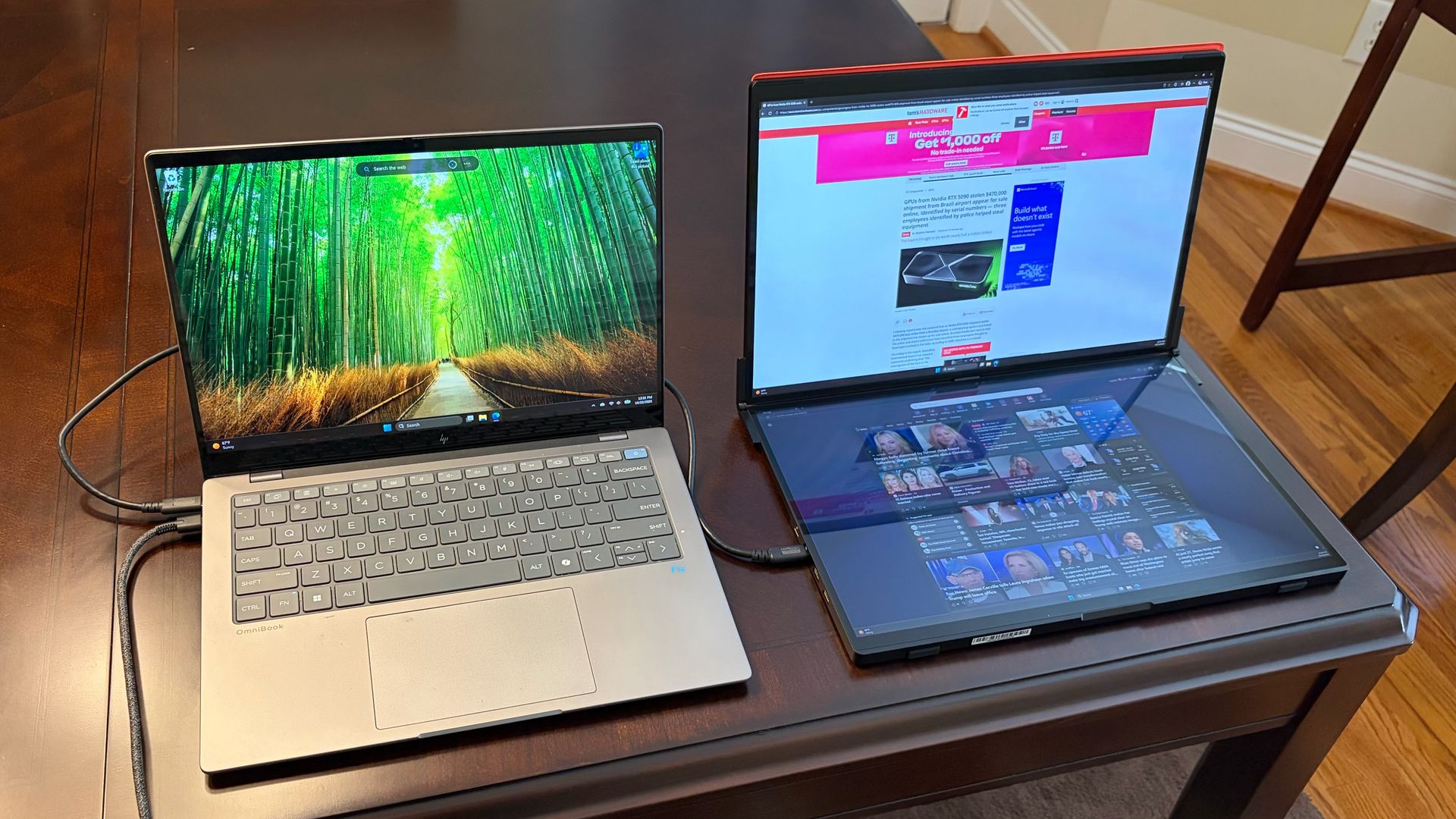
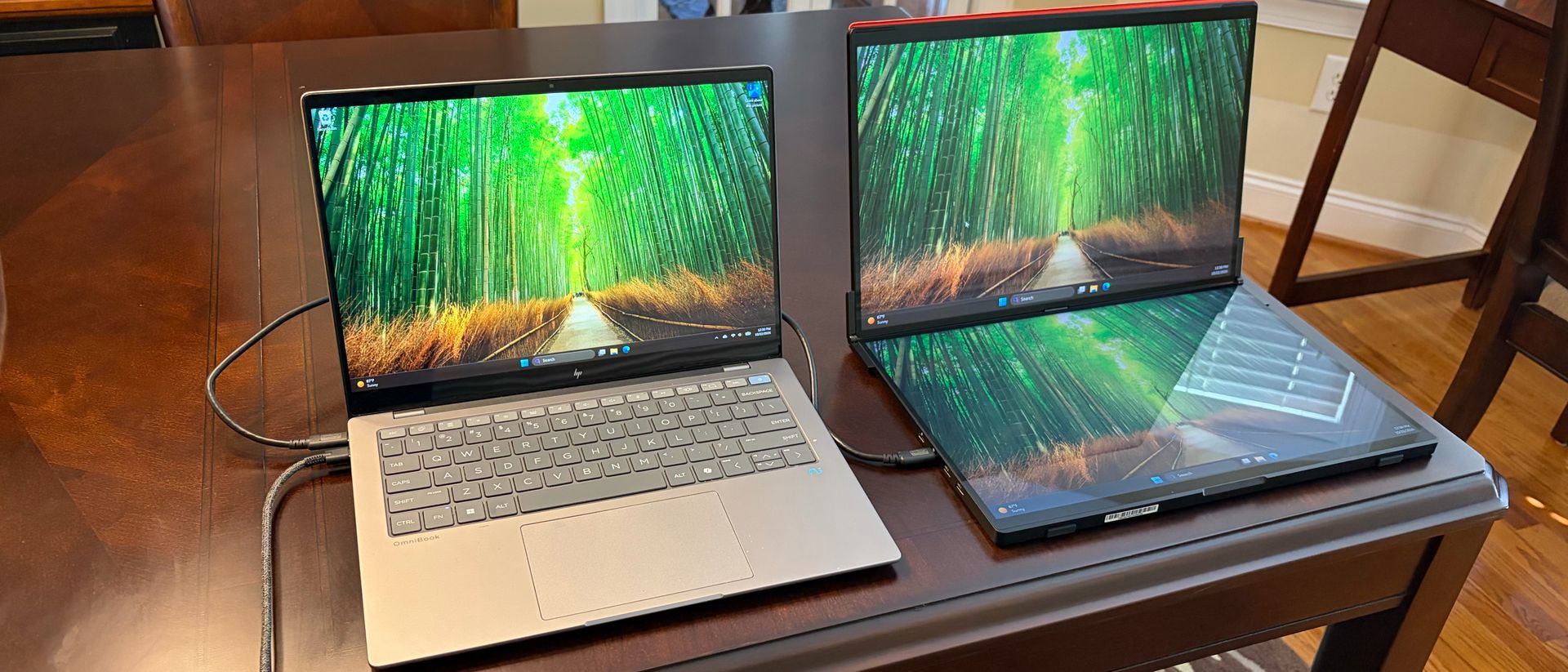
While JSAUX labels the FlipGo as a “portable” monitor, this is not something that you’ll be able to easily slip into a laptop bag or even a backpack. The dual 16-inch screen frame measures 14.41 x 9.45 inches and is 0.7 inches thick. For most people, the FlipGo will take up a permanent residence on your desk, or perhaps travel with you from one side of your office building to the other. But carrying it around for travel seems like a bridge too far.
With that said, the specs on the FlipGo are quite impressive. You get two 16-inch 60 Hz IPS displays, each with a resolution of 2560 x 1600. Considering that most competitors in this space give you dual 1920 x 1080 panels, this resolution upgrade is much appreciated here.
Both screens feature a glossy finish, which is uncommon for dual-screen monitors. However, that’s because both panels support 10-point touch input natively in Windows 11. Unfortunately, touch input is not supported in macOS, so you’ll want to consider the FlipGo (non-touch) if you’re a Mac user.
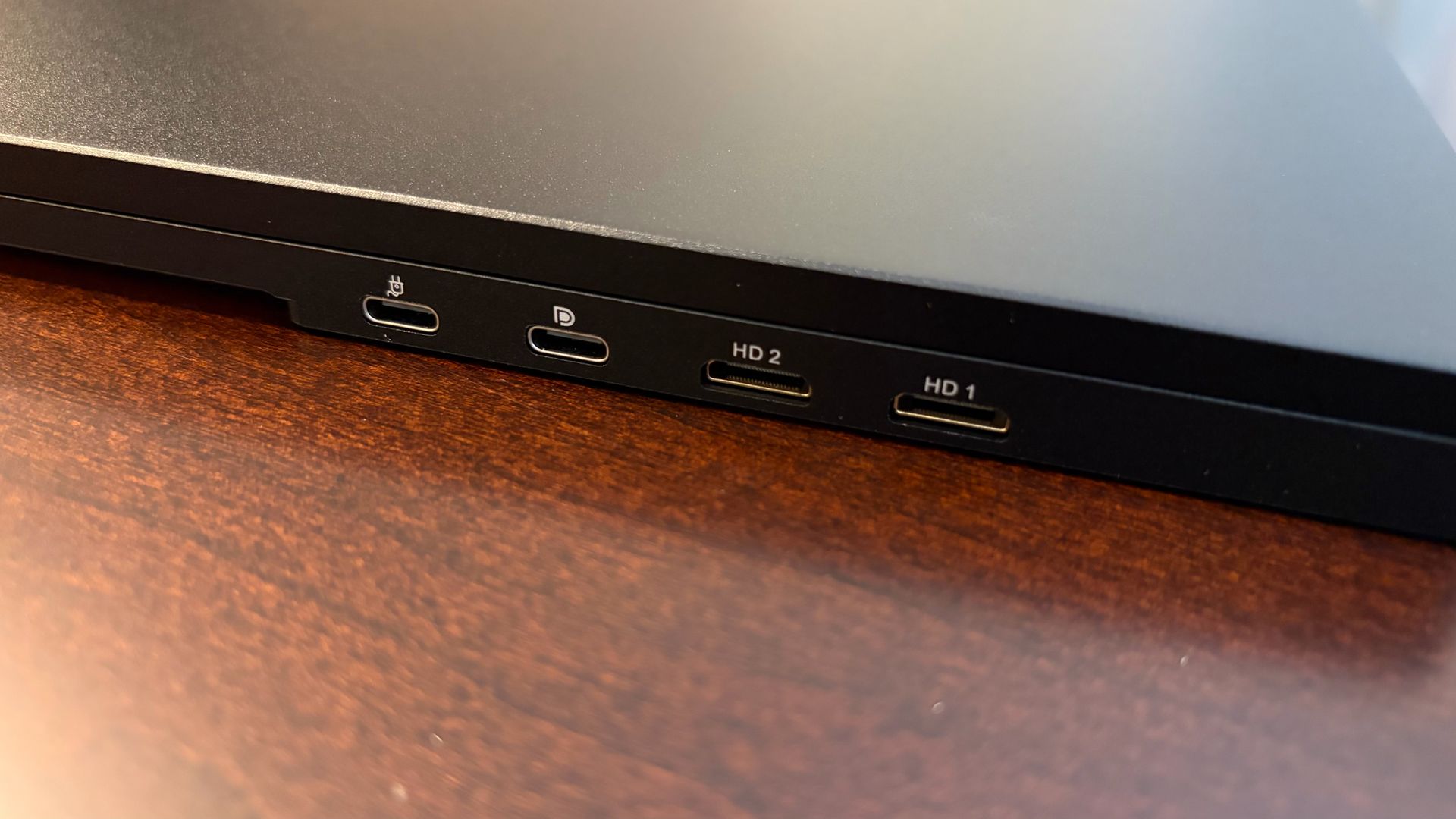
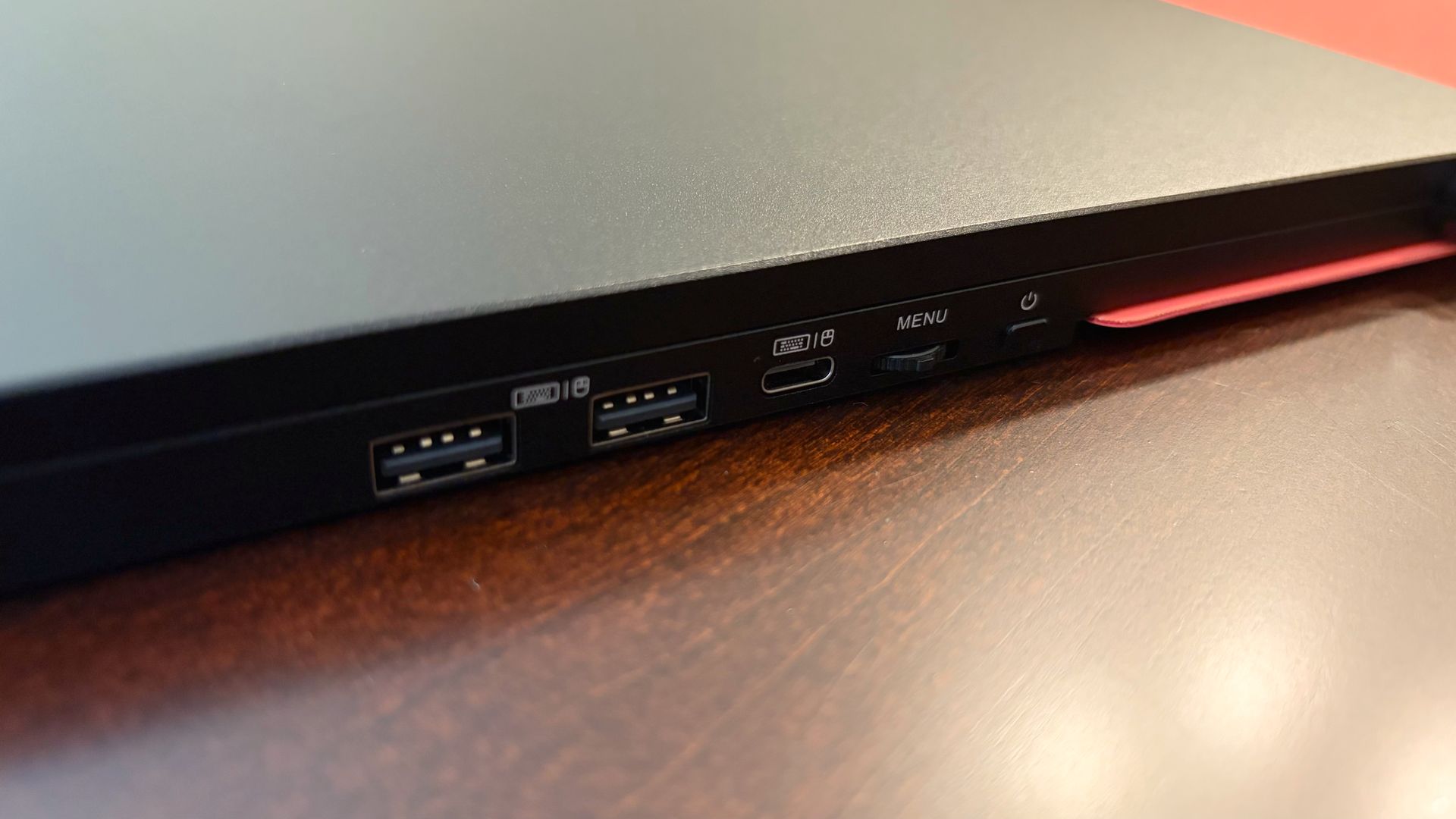
Connectivity-wise, the FlipGo’s primary ports are on the left side of the bottom panel. Here you’ll find two USB-C ports and two mini-HDMI ports. On the right side of the bottom panel, you’ll find ports provided by the internal USB hub: two USB-A and one USB-C. Adjacent to the USB hub hookups is a three-way jog wheel for the OSD and the power button.
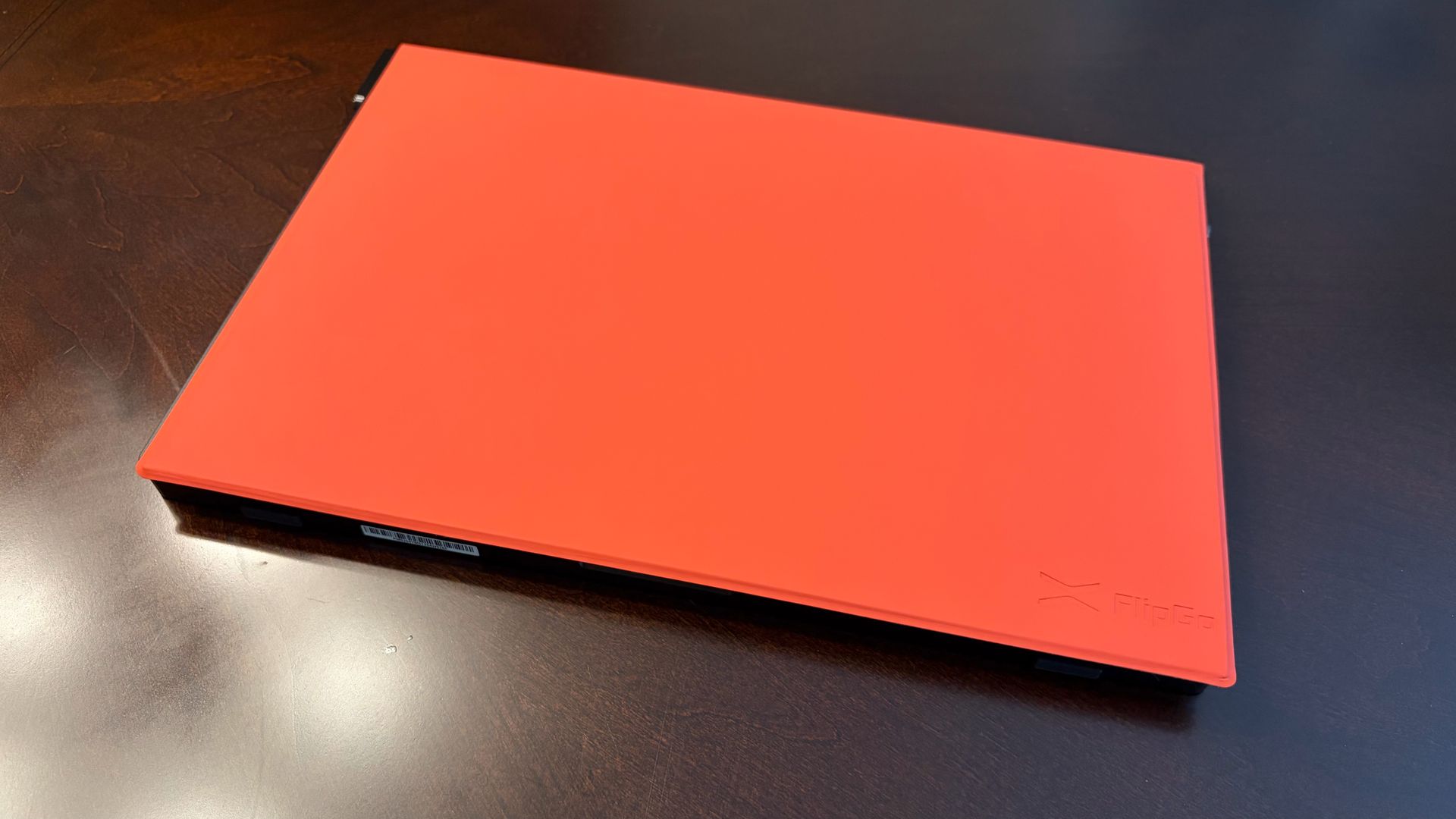
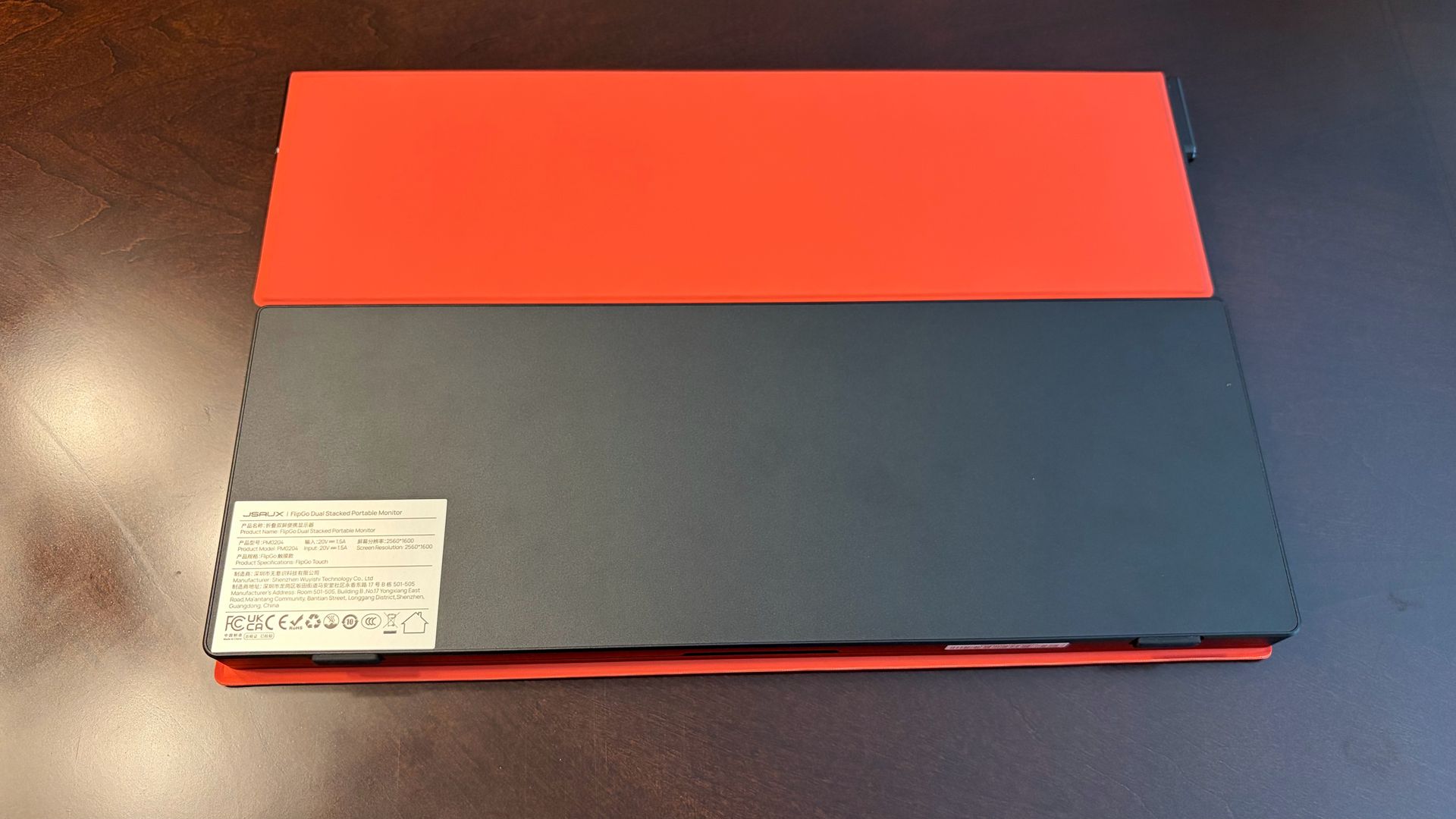
JSAUX offers a stand that allows you to prop the FlipGo up in landscape (one monitor stacked on top of the other) or portrait mode (both monitors standing up vertically, book-style). However, our review unit only came with a red faux leather protective cover. Without the stand, I could use the monitor with the bottom panel sitting flat on my desk and the top panel sitting vertically. Alternatively, I could use it in portrait mode.
JSAUX FlipGo (PM0204) Specifications
Panel Type / Backlight | IPS |
Screen Size / Aspect Ratio | 16 inches / 16:10 x2 |
Max Resolution & Refresh Rate | 2560 x 1600 @ 60Hz |
Typical Brightness | 500 nits |
Contrast Ratio Typical | 1,200:1 |
Video Ports | 2x USB-C, 2x micro-HDMI |
USB Hub | 2x USB-A, 1x USB-C |
Speakers | None |
Weight | 4.18 pounds |
Warranty | 1 year |
OSD on the JSAUX FlipGo (PM0204)
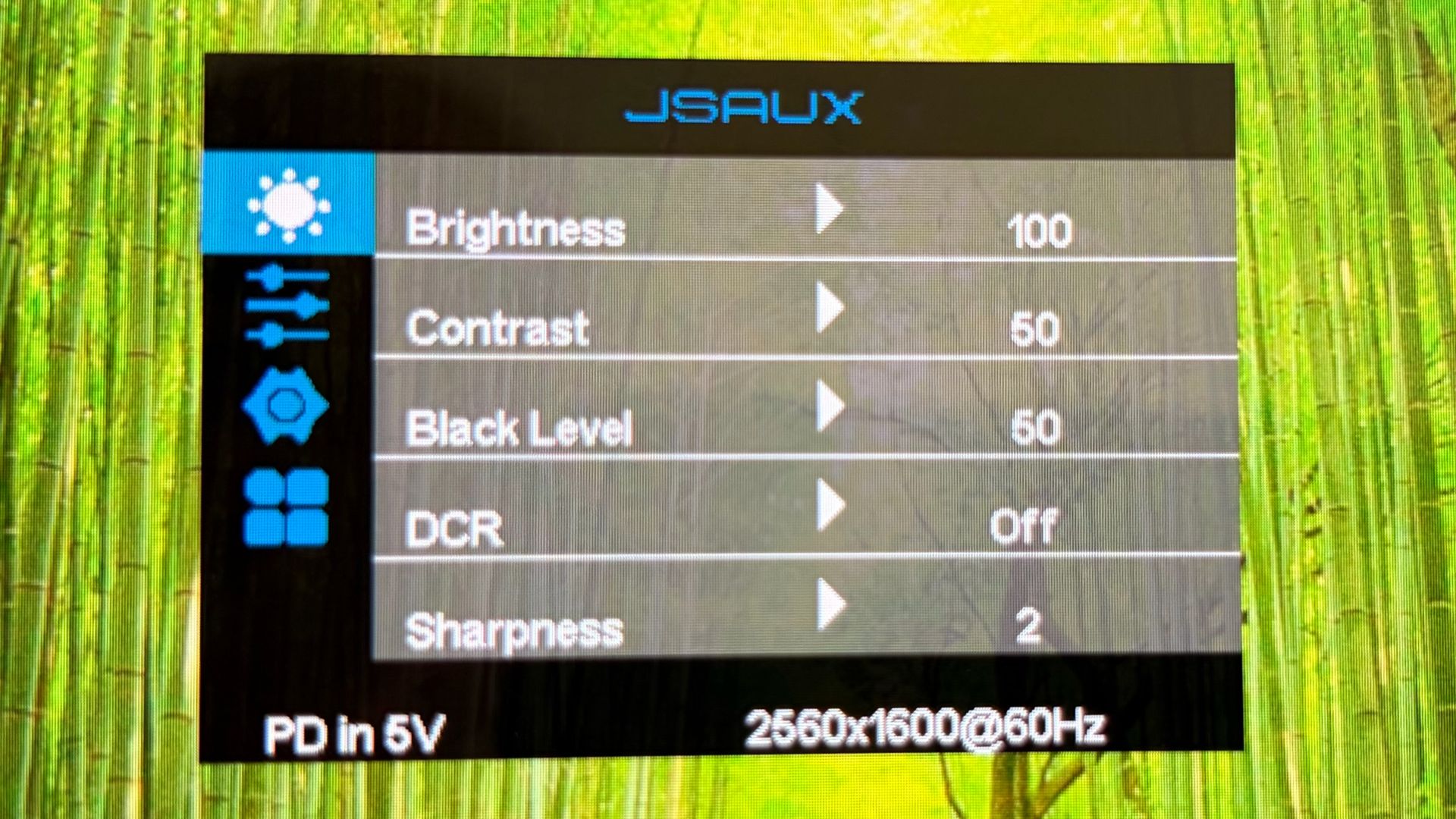
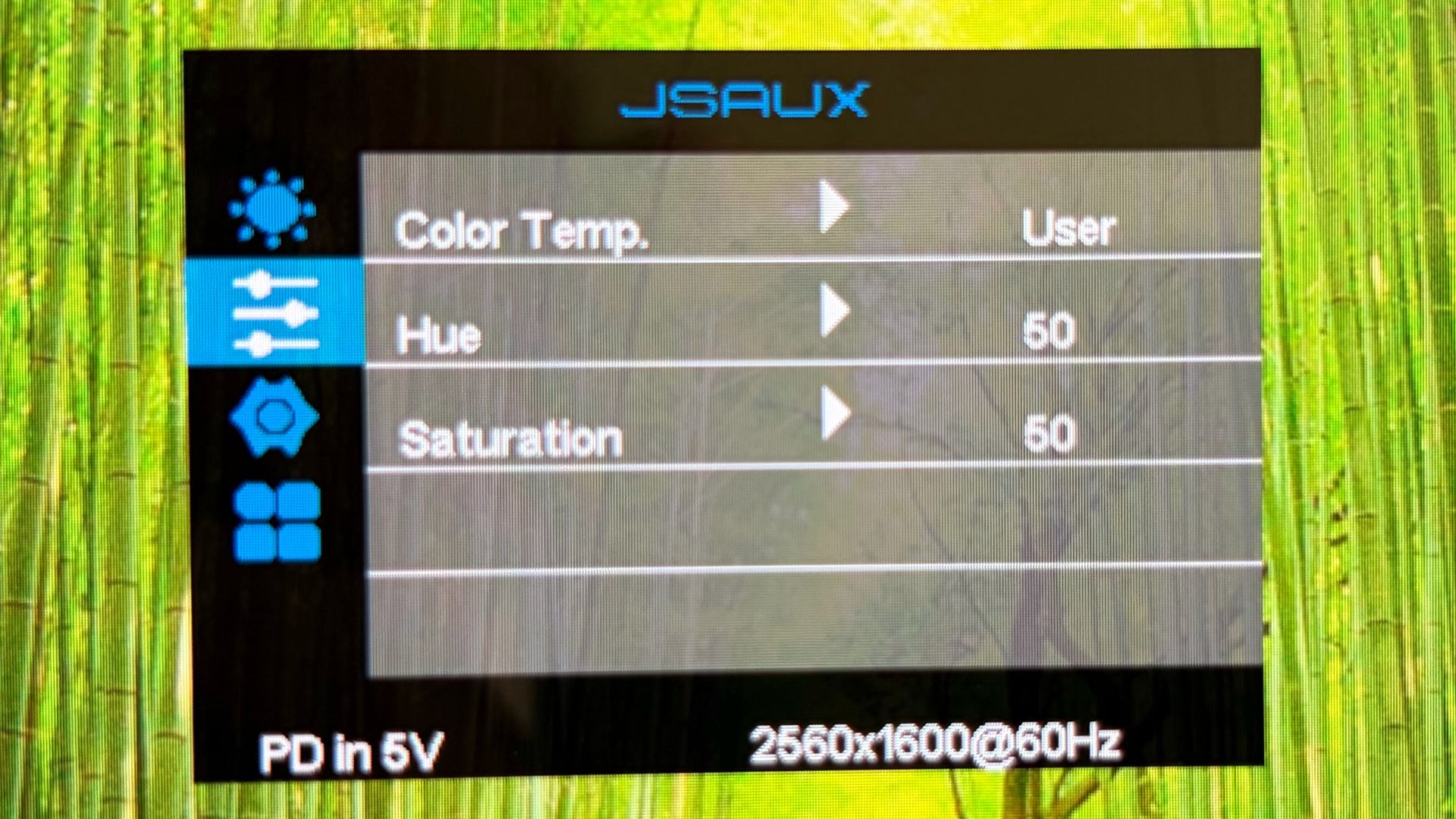
The FlipGo uses a relatively basic on-screen display (OSD), which is controlled using a three-way jog wheel. Despite there being two displays, you don’t have independent control over picture settings. Adjustments made on one display apply to both, for better or worse.
You can flick the wheel right or left to adjust brightness up or down. Moving up and down with the jog wheel navigates through the OSD, while pressing on it takes you one level deeper until you select an option (similar to the previously reviewed FlipGo Horizon Pro). Likewise, pressing once on the power button takes you back one menu, and a long press turns off the monitor.
You’ll find the usual assortment of adjustable settings in the OSD, like brightness, contrast, and sharpness. There’s a separate menu for color temperature, saturation, and hue. There are also options to switch between HDMI and USB-C inputs.
Connecting and Operating the JSAUX FlipGo (PM0204)
The FlipGo comes with an assortment of cables in the box. You get two USB-C cables, a mini-HDMI to HDMI cable, and a USB-C wall adapter. As I previously mentioned, the FlipGo does not support touch input on macOS. In addition, the FlipGo only supports mirror mode for both screens on macOS and requires you to use both USB-C and mini-HDMI to HDMI cables to connect (Windows 11 supports both mirror and extend modes). Because of these limitations and the fact that you’d be better off buying the cheaper non-touch model for macOS, I performed all of my testing with a Windows 11 laptop (HP OminiBook X).
Setting up the FlipGo couldn’t have been easier. Although JSAUX includes two mini-HDMI ports on the FlipGo for use with older laptops, if you have a USB-C port that supports DisplayPort, you can use that instead. With my OmniBook X test laptop, I was able to use just one USB-C cable to handle both power and video/data for the FlipGo. The FlipGo also supports 60-watt power passthrough to your laptop, which you can leverage by running dedicated power through the second USB-C port.
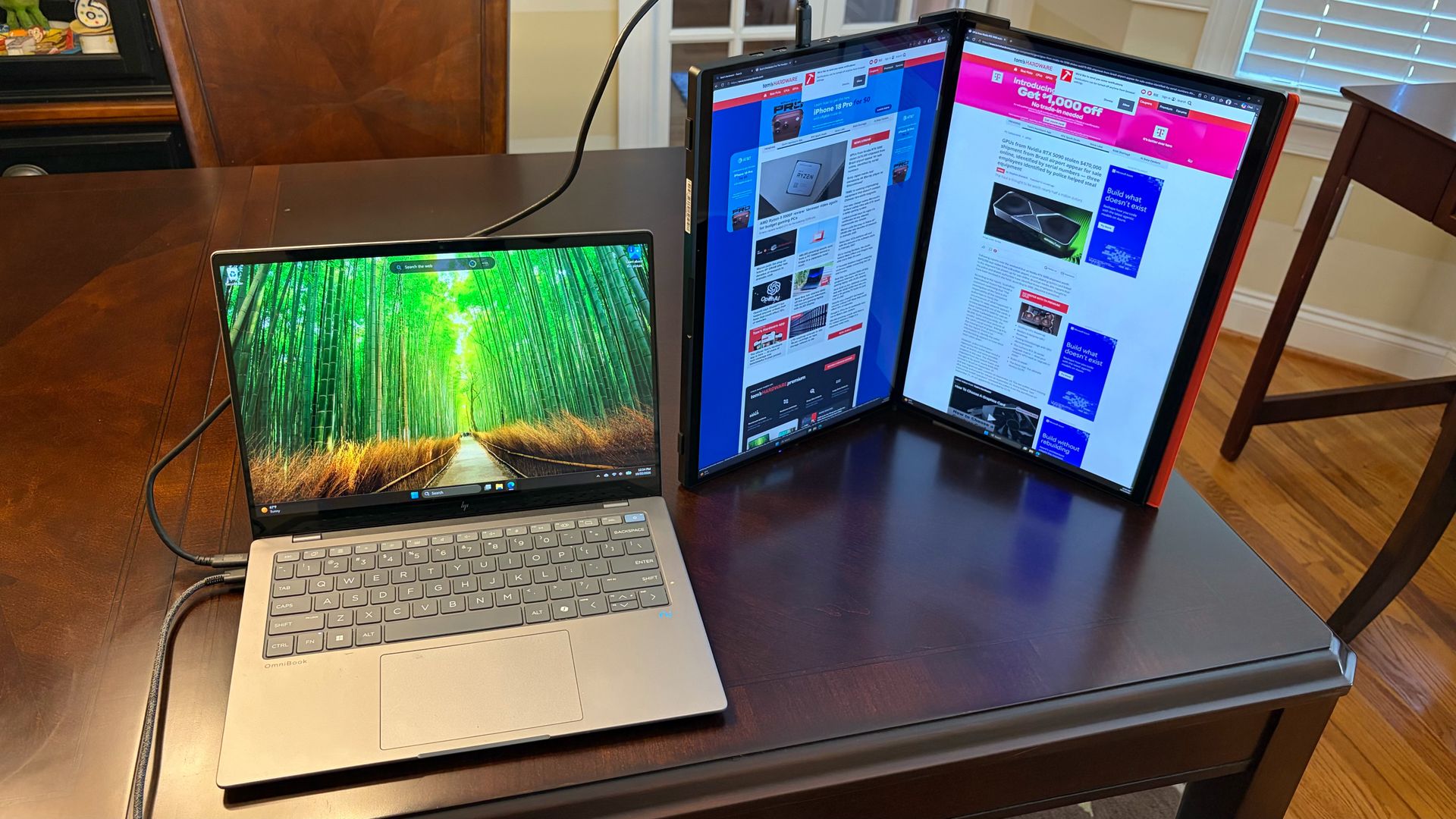
Using just a single cable between the FlipGo and the OmniBook X, I primarily used the two displays in portrait mode. In this mode, I could have two separate webpages open, side-by-side next to the OmniBook X’s internal panel. While I could use the FlipGo in landscape mode, the bottom panel had to lie flat on my desk, given that no stand was provided with my review unit to prop it up.
Touch support functioned, as expected, on both panels without needing to install any additional software. In short, the FlipGo operated flawlessly.
Display Performance on the JSAUX FlipGo (PM0204)
The FlipGo uses two 16-inch IPS panels, each with a resolution of 2560 x 1600 and a refresh rate of 60 Hz. JSAUX listed maximum brightness at 500 nits, but as you’ll see with our test numbers below, that figure was quite optimistic.
As I previously stated, due to the lack of a stand provided with my review unit, I primarily used the FlipGo in portrait mode, and it performed wonderfully here. The large panel sizes combined with the extra resolution over 1080p panels made them ideal for putting two webpages side-by-side. More frequently, I found myself pairing a webpage with an instance of Microsoft Word or Microsoft Excel. I especially appreciated the extra vertical resolution to limit scrolling up and down in Excel.
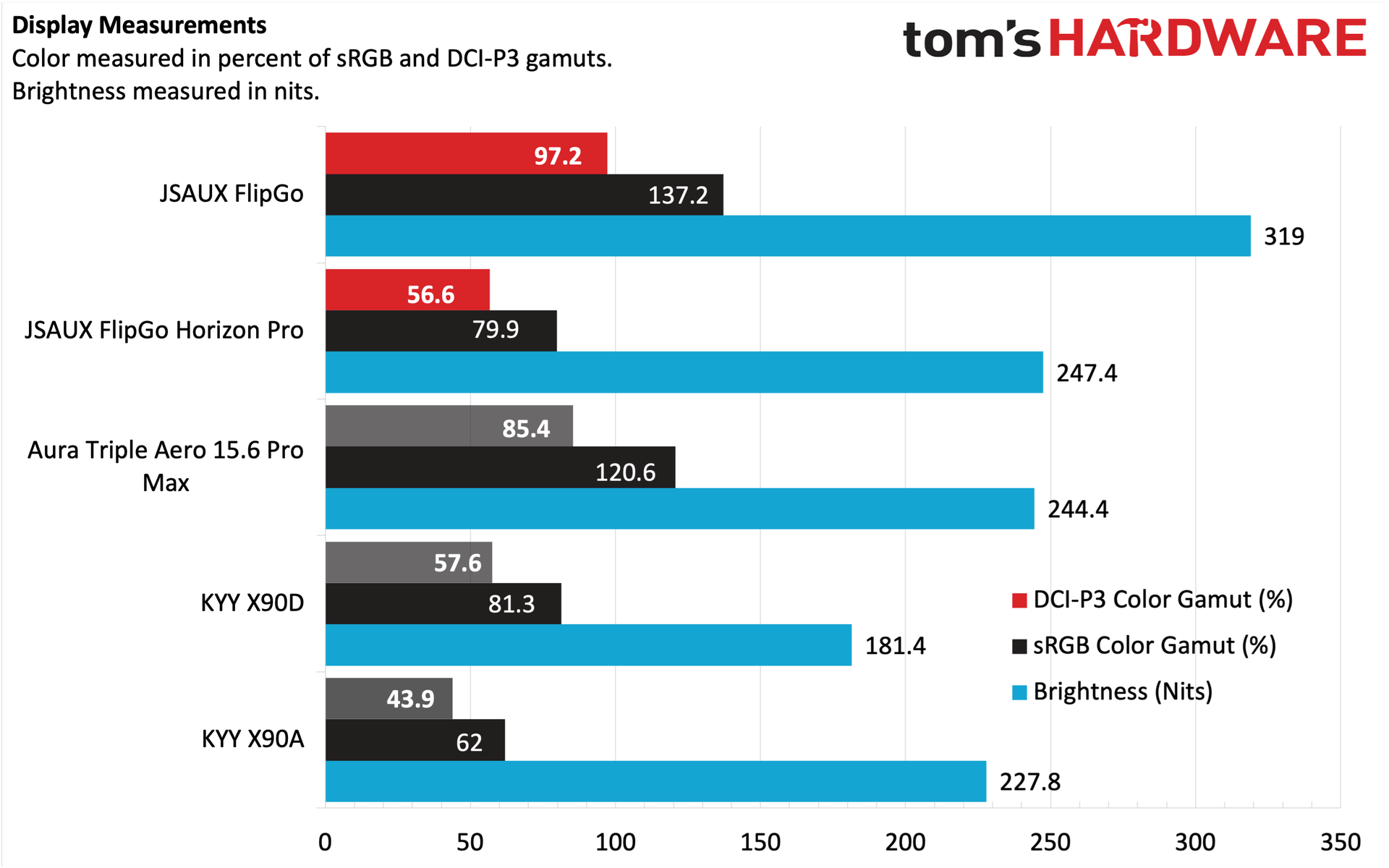
Compared to the FlipGo Horizon Pro that I previously reviewed, the panels on the “regular” FlipGo were far superior. Not only were they much more colorful and vibrant, but they were also vastly superior in brightness (319 nits versus 247.4 nits). However, I must note that the 319 nits that we recorded were a far cry from the 500 nits that JSAUX claims.
For our color tests, the FlipGo covered 97.2 percent of DCI-P3 and 137.2 percent of sRGB color spaces. That put the FlipGo well ahead of its competition, with the Aura Triple Aero 15.6 Pro Max coming the closest (at 85.4 percent and 120.6 percent, respectively). Given the higher-quality panels on the FlipGo compared to the FlipGo Horizon Pro and the glossy finish on my OmniBook X’s display, overall color balance matched pretty well across all three displays, adding to the enjoyment of using the portable monitor. I’ve often found that portable monitors have slightly (and sometimes far) inferior panels than their laptop counterparts, which can lead to a jarring experience when looking from one to the other. That is definitely not the case with the FlipGo.
Bottom Line
The JSAUX FlipGo is a remarkable piece of hardware for productivity warriors. At first sight, the FlipGo impresses with its high-quality build, stiff hinges, and plentiful video input options. JSAUX even incorporates a USB hub that gives you a couple of USB-A ports and a USB-C port to expand your peripheral footprint.
The FlipGo also tops the charts when it comes to color performance and brightness, more than justifying its $479 street price. I have two reservations concerning my review unit, but only one is really applicable. My review unit lacked a stand to prop the FlipGo up in landscape or portrait modes; however, shipping units from Amazon now include that part. So, crisis averted on that front. My other complaint is unavoidable: the 4.18-pound weight is considerable and is probably a bit more than most people are willing to deal with when traveling. However, it makes a perfect companion for expanding real estate on your desk without the massive footprint that comes with hooking up a traditional desktop monitor.